Keyboard Shortcuts (Microsoft Windows)
1. CTRL+C (Copy)
2. CTRL+X (Cut)
... 3. CTRL+V (Paste)
4. CTRL+Z (Undo)
5. DELETE (Delete)
6. SHIFT+DELETE (Delete the selected item permanently without placing the item in the Recycle Bin)
7. CTRL while dragging an item (Copy the selected item)
8. CTRL+SHIFT while dragging an item (Create a shortcut to the selected item)
9. F2 key (Rename the selected item)
10. CTRL+RIGHT ARROW (Move the insertion point to the beginning of the next word)
11. CTRL+LEFT ARROW (Move the insertion point to the beginning of the previous word)
12. CTRL+DOWN ARROW (Move the insertion point to the beginning of the next paragraph)
13. CTRL+UP ARROW (Move the insertion point to the beginning of the previous paragraph)
14. CTRL+SHIFT with any of the arrow keys (Highlight a block of text)
SHIFT with any of the arrow keys (Select more than one item in a window or on the desktop, or select text in a document)
15. CTRL+A (Select all)
16. F3 key (Search for a file or a folder)
17. ALT+ENTER (View the properties for the selected item)
18. ALT+F4 (Close the active item, or quit the active program)
19. ALT+ENTER (Display the properties of the selected object)
20. ALT+SPACEBAR (Open the shortcut menu for the active window)
21. CTRL+F4 (Close the active document in programs that enable you to have multiple documents opensimultaneously)
22. ALT+TAB (Switch between the open items)
23. ALT+ESC (Cycle through items in the order that they had been opened)
24. F6 key (Cycle through the screen elements in a window or on the desktop)
25. F4 key (Display the Address bar list in My Computer or Windows Explorer)
26. SHIFT+F10 (Display the shortcut menu for the selected item)
27. ALT+SPACEBAR (Display the System menu for the active window)
28. CTRL+ESC (Display the Start menu)
29. ALT+Underlined letter in a menu name (Display the corresponding menu) Underlined letter in a command name on an open menu (Perform the corresponding command)
30. F10 key (Activate the menu bar in the active program)
31. RIGHT ARROW (Open the next menu to the right, or open a submenu)
32. LEFT ARROW (Open the next menu to the left, or close a submenu)
33. F5 key (Update the active window)
34. BACKSPACE (View the folder onelevel up in My Computer or Windows Explorer)
35. ESC (Cancel the current task)
36. SHIFT when you insert a CD-ROMinto the CD-ROM drive (Prevent the CD-ROM from automatically playing)
Dialog Box - Keyboard Shortcuts.

How To View Facebook Private Profile Photo In Large Size ?
How To View Facebook Private Profile Photo In Large Size ?
Sometime you want to see clear image of someone on facebook who might not be your friend but his/her privacy setting stop you from doing this. In this tutorial i will teach you to view facebook private or locked profile picture in large size with very simple trick.
How To View Facebook Locked Profile Picture ?
1. Open the facebook profile of person whose profile picture is locked or is set to private.
2. Right click on the profile picture and click on Copy Image Url as shown in image below.
Facebook Private Profile Photo
3. Open that image in new tab by right clicking and selecting Paste (CTRL + V)
4. Now change the value of image size highlighted below which might be s160x160 to s720x720 (If its not clear try (s320x320)
Facebook Private Profile Photo
5. The image will enlarge in size. This trick does not always work.
Sometime you want to see clear image of someone on facebook who might not be your friend but his/her privacy setting stop you from doing this. In this tutorial i will teach you to view facebook private or locked profile picture in large size with very simple trick.
How To View Facebook Locked Profile Picture ?
1. Open the facebook profile of person whose profile picture is locked or is set to private.
2. Right click on the profile picture and click on Copy Image Url as shown in image below.
Facebook Private Profile Photo
3. Open that image in new tab by right clicking and selecting Paste (CTRL + V)
4. Now change the value of image size highlighted below which might be s160x160 to s720x720 (If its not clear try (s320x320)
Facebook Private Profile Photo
5. The image will enlarge in size. This trick does not always work.
.jpg "Quick Heal Total Security 2013")


Avira Antivirus 13.0.0.4
Wednesday, 25 September 2013
.jpg "Avira AntiVirus Full Version Free Download")
Avira AntiVirus 13.0.0.4 Full Version
Free Download
File Size : 109.7 MB
System Requirements!
- System : Pentium III CPU 933 MHz
- RAM : 256 MB
- OS : Windows XP Vista 7 and Windows 8


Neo Turf Masters Big Tournament Golf Game


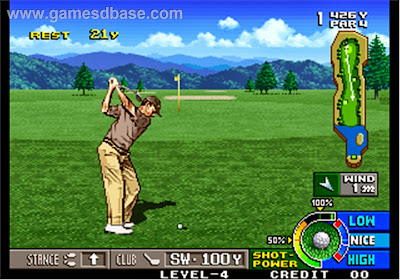
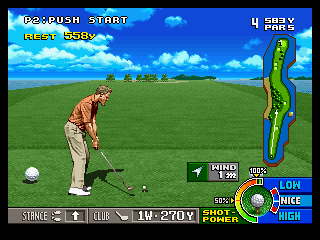
Neo Turf Masters Big Tournament Golf Full Version
Free Download
File Size : 14.7
System Requirements!
- CPU : 233 Mhz
- RAM: 64 MB
- OS: Windows 98, 2000, XP, Vista, 7 and Windows 8
Wanted Weapons Of Fate Game
.jpg "Wanted Weapons Of Fate Game Free Download")


Wanted Weapons Of Fate Game Full Version
Free Download
File Size : 2.93 GB
System Requirements!
- Windows XP,7,Vista
- Ram:2 GB
- Video Memory: 512 MB
- Cpu: Intel Core 2 Due E6540
- HDD: 5 GB


